
Sonos Installation
Sonos Installation in Marin and the Bay Area
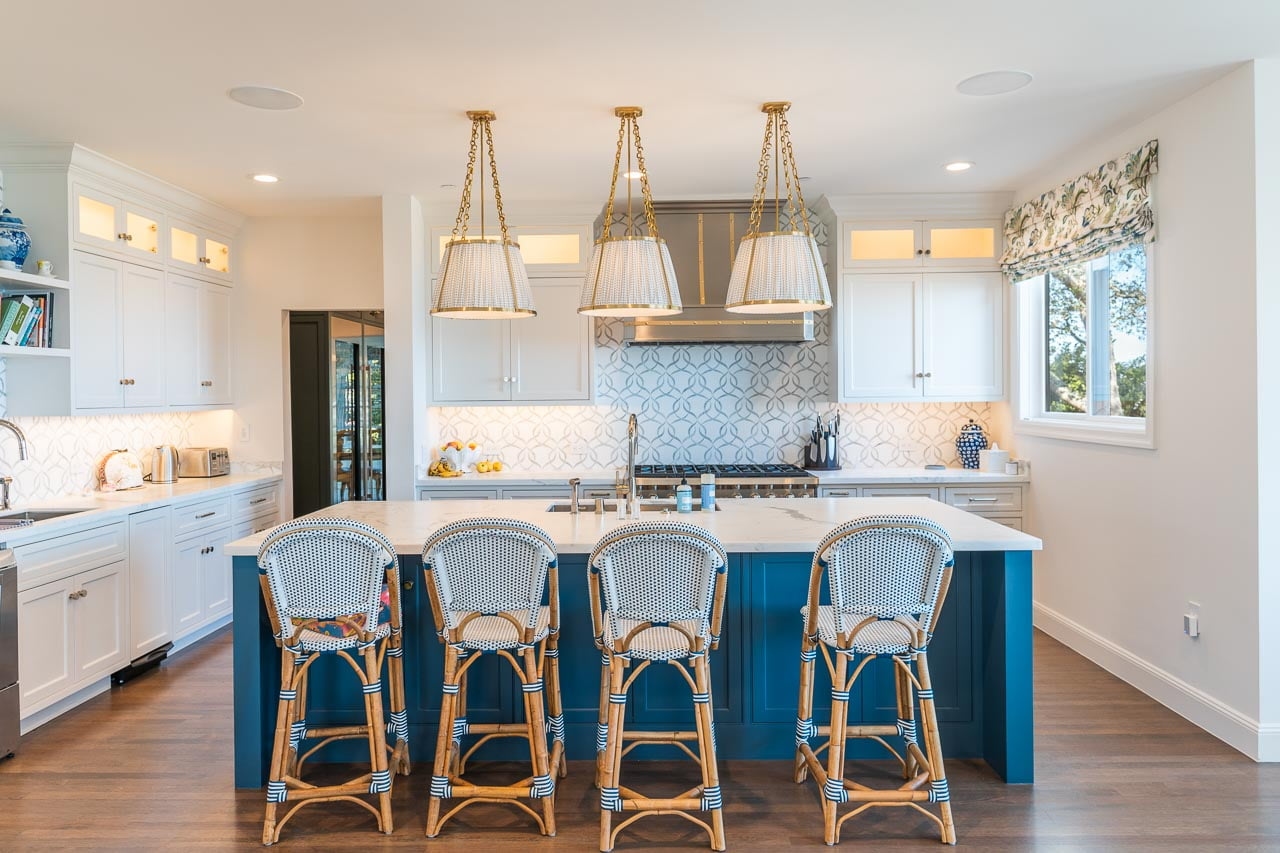
Cranking up your home audio system or home theater experience can be thrilling. However, our customers often prefer to listen to these systems at moderate or low volumes. Having your home audio system at a low volume is excellent for gatherings and get-togethers. It helps your guests talk to each other at a normal volume, even with music playing. Even watching TV can be enjoyable at a lower volume, especially when watching the news or winding down at the end of the day.
The Cause of Poor, Low-Volume Listening
Think of speakers in your home like downlights. If you have a single downlight the center in a large room, it’ll be bright right under the light, a reasonable brightness surrounding the light, and pretty dark by the edges of the room. If we wanted the room to be evenly lit, we’d suggest multiple downlights throughout the room.
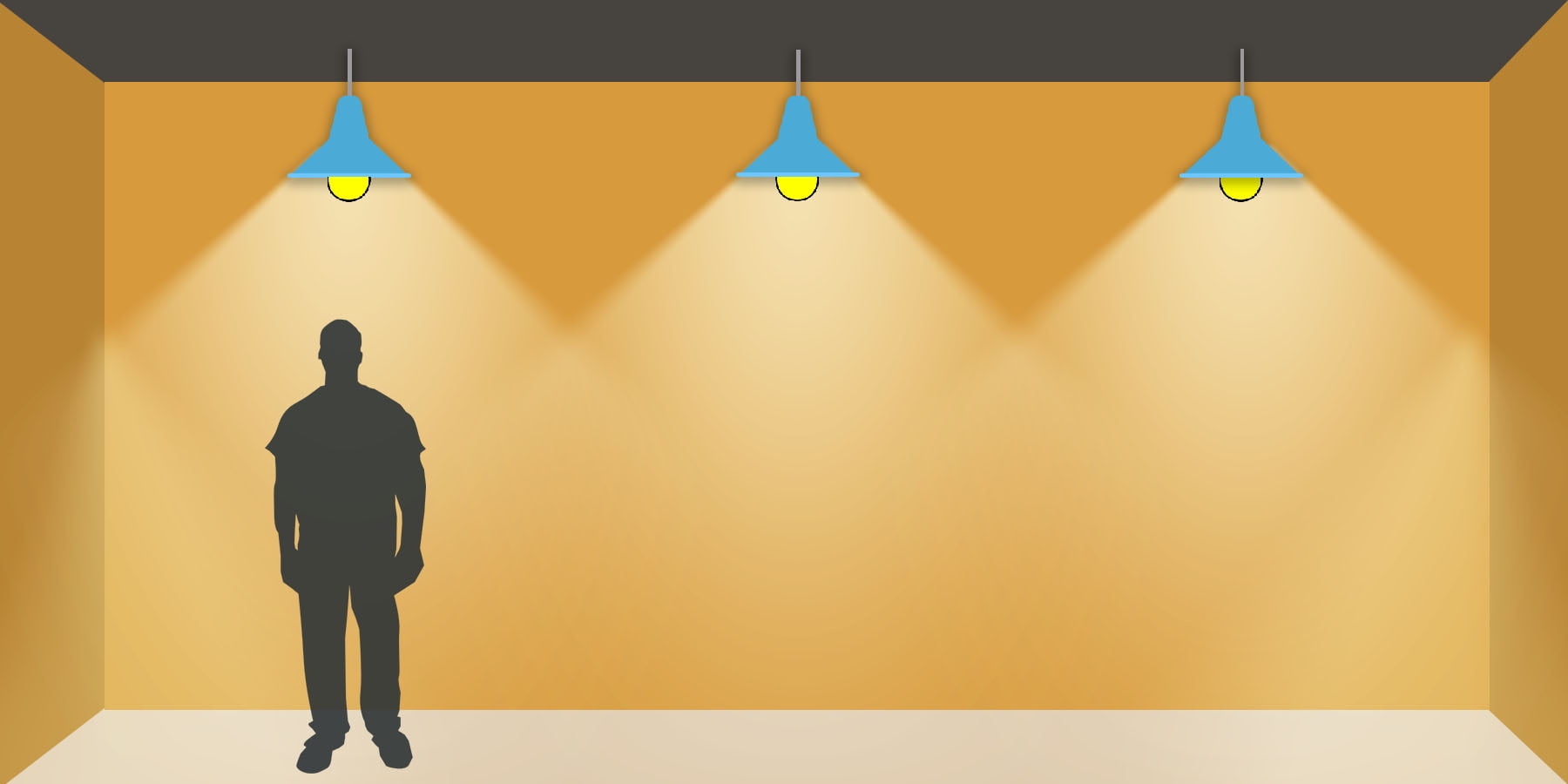
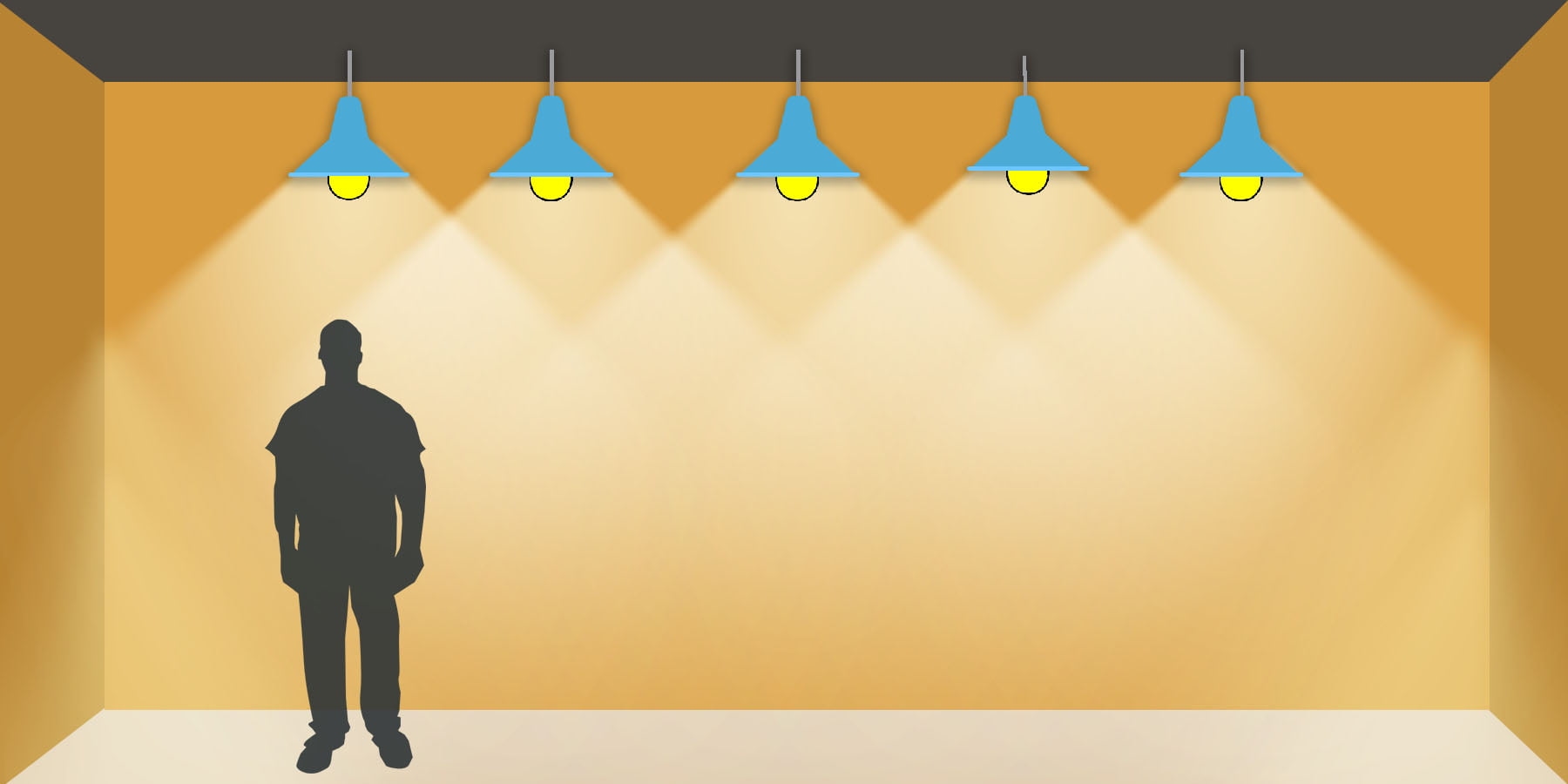
In this case, it helps to think of sound similarly to light. A single speaker in the center of the room would be loud right underneath, quiet in the corners and may be the perfect volume somewhere in the middle. If you adjust the volume to the “perfect level” while in the corner of the room, it will be loud everywhere else!
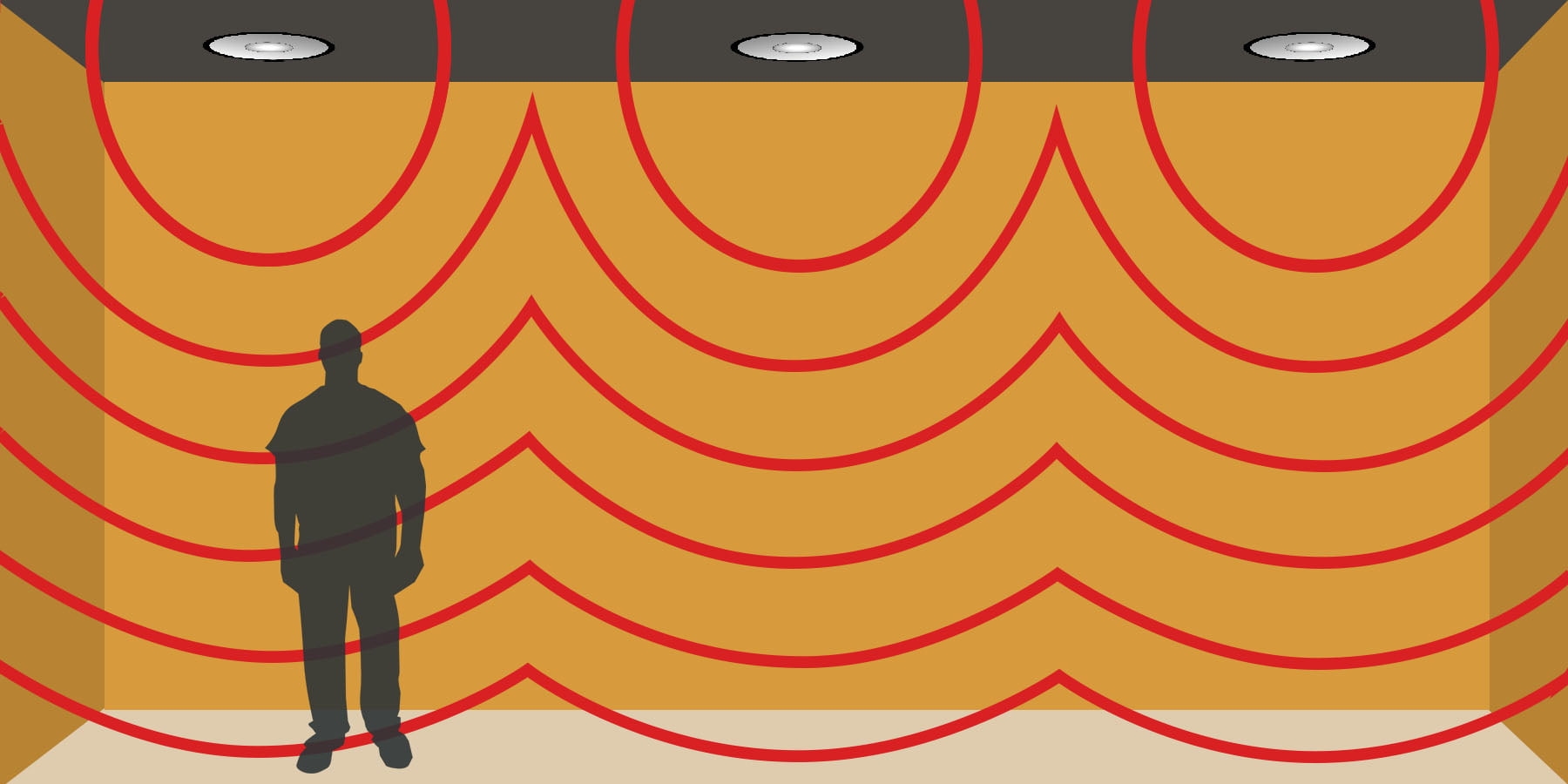
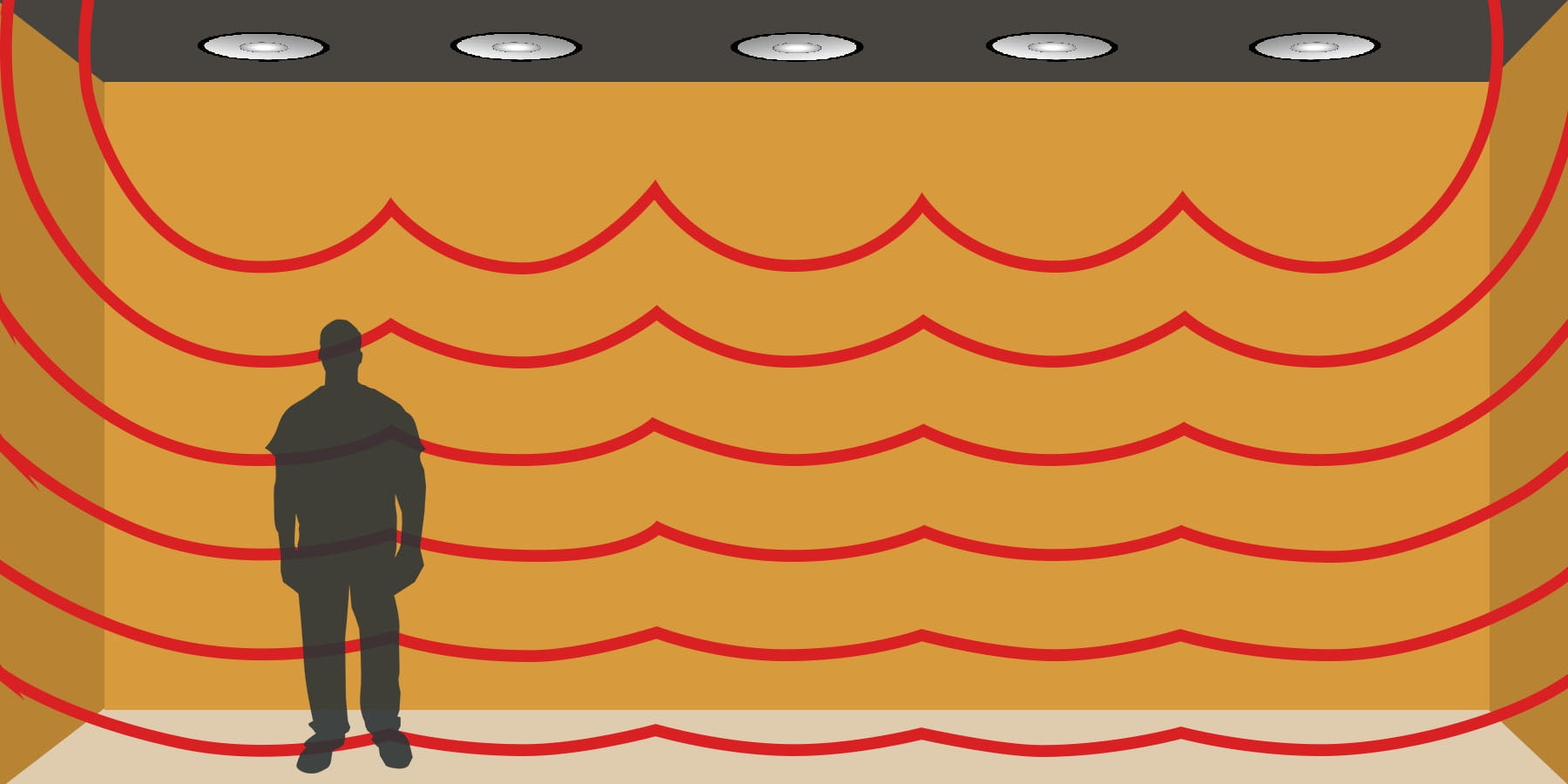
Fixing A Room To Have Uniform Sound
Thankfully, you can have the best of both worlds. Let’s go back to our lighting analogy. We can all agree that adding more downlights makes lighting more uniform. The same is true with speakers. When you increase the number of speakers, the sound in the room becomes more uniform. The more speakers you add, the more equal the distance everyone is from a speaker, and the more uniform the volume will feel. When the volume is more uniform, you can guarantee that when you think the music is quiet, so will everyone else in your home.
Why Does This Matter?
The truth is, maybe it doesn’t matter to you. Fewer speakers sacrifice volume uniformity. That means the volume change will be uncomfortably noticeable as you walk around your space. Walking around your house with music on would probably feel like watching TV while constantly adjusting the volume.
If you love having people over and putting music on for ambiance, it would be awkward if guests could only hear each other talk in some parts of the room. With fewer speakers, some people may need help speaking over your music while others may not even hear it.
How Many Speakers Are Enough?
It depends! It depends on the height of your ceiling, the size of your room and your goals for the space. We take all this information to help you determine the best speaker arrangement for your space. Our goal is to install the minimum number of speakers while ensuring the volume of the music feels uniform throughout the room. We have multiple ways to make speakers disappear into your décor, including completely invisible speakers. If you want SoundVision the help you with your home AV project, call us at 415-456-7000.
Caution: Newer Guide Available
Sonos has completely redesigned the Sonos S2 app as of May 7, 2024. Please refer to this guide for more help
Table of Contents
Adjusting the EQ
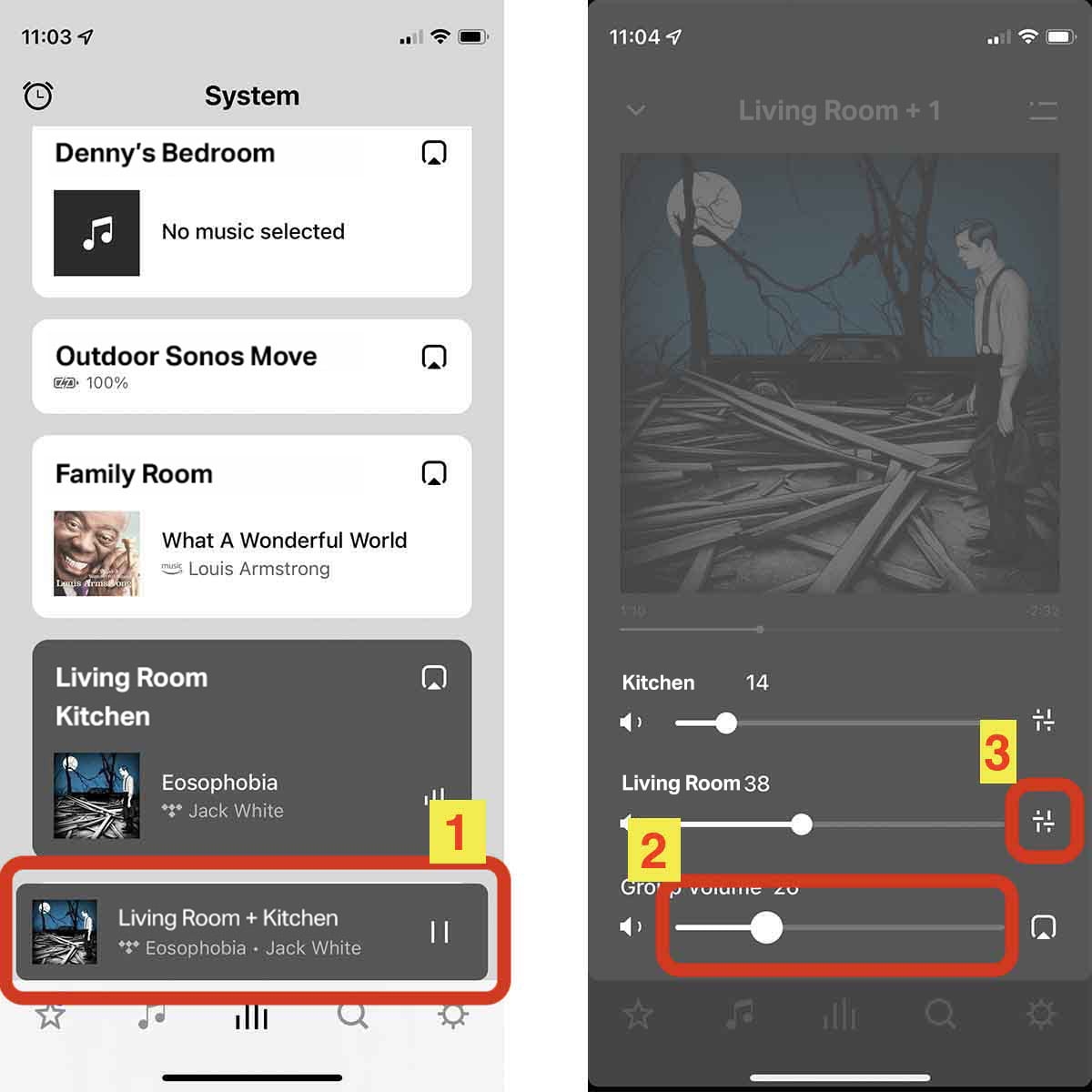
- First, select the room we want to adjust the EQ on. To do this, we have to tap the bottom center button to see all the devices on our system.
- Next, single tap the room you want to adjust the EQ of. If your room (speakers) is currently grouped with other rooms, just select the group of rooms together. The following steps will be the same.
- Tap the “Now Playing” bar.
- Tap the “volume slider.”
- Tap the “two sliders” icon on the right for the device you want to adjust.
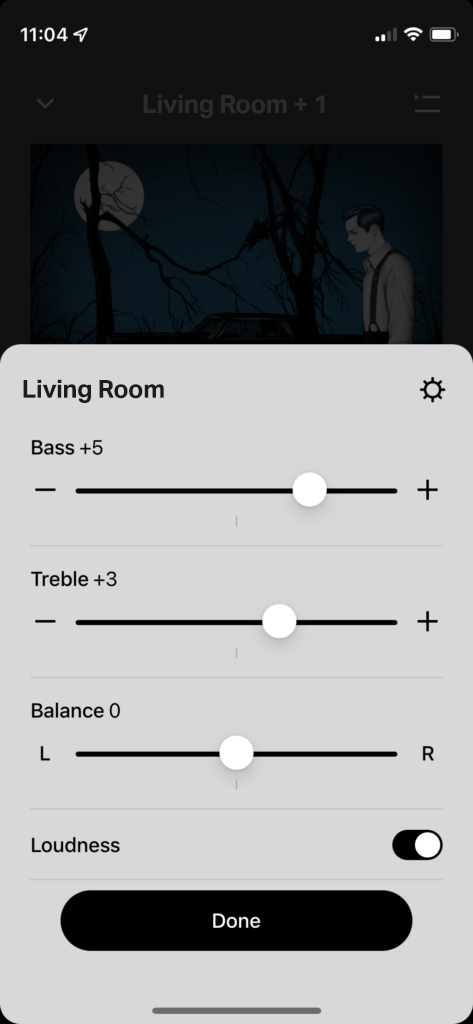
- Now you can adjust the bass, treble and left/right balance by dragging the sliders.
Selecting Music Source
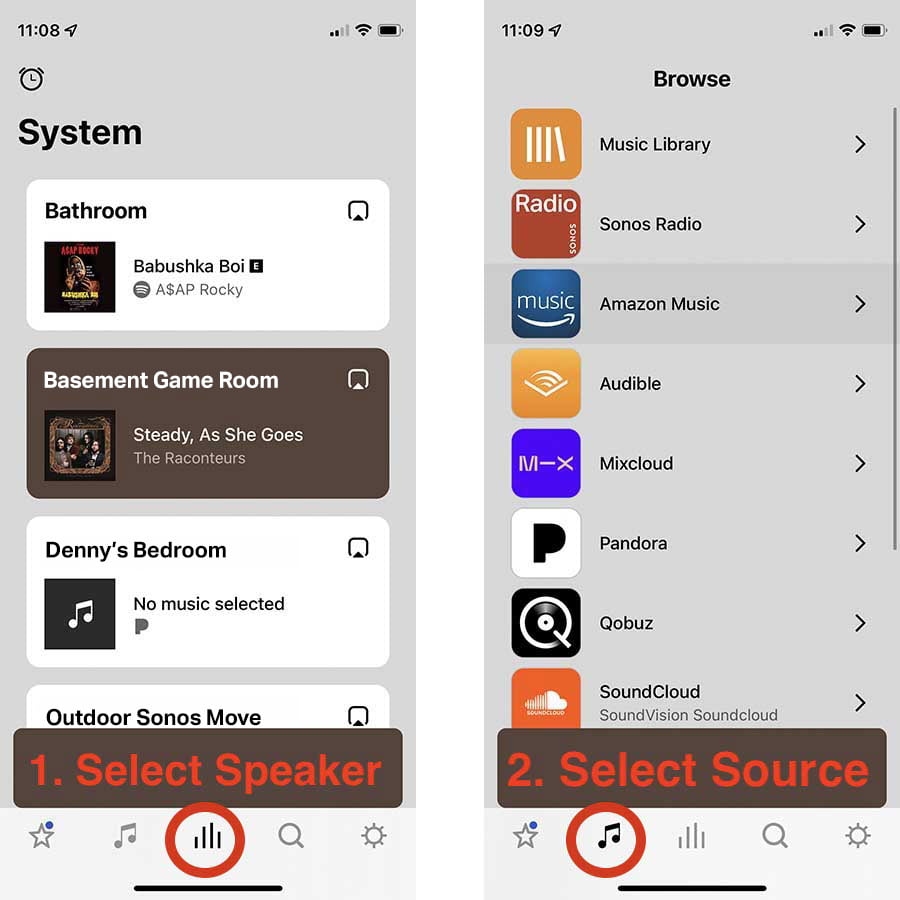
- First, make sure the room you want to play music from is selected.
- To select music, tap the music note in the bottom bar.
- Select the music service you want to use.
- Navigate the music service to find the music you want to play. When you find a song, album, playlist or station you want to play, simply tap it to start playing to the selected room.
Selecting Different Rooms
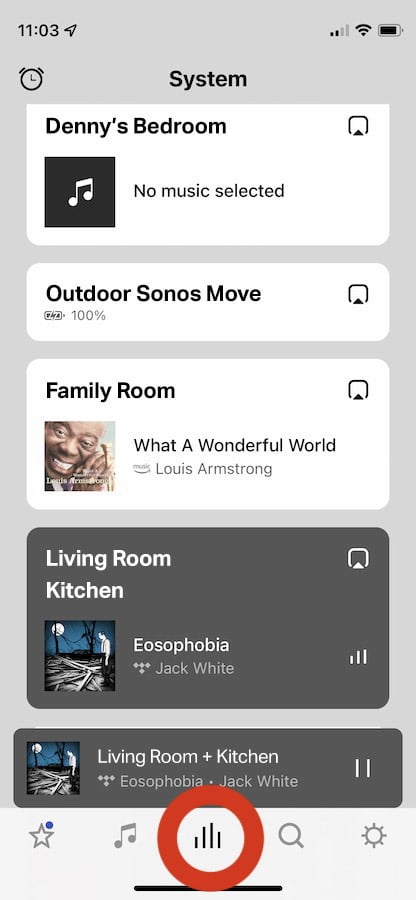
- To select a room, tap the icon in the lower center of your screen. Then a list of all the rooms in your home should appear.
Adjusting The Volume of a Room (Individual)
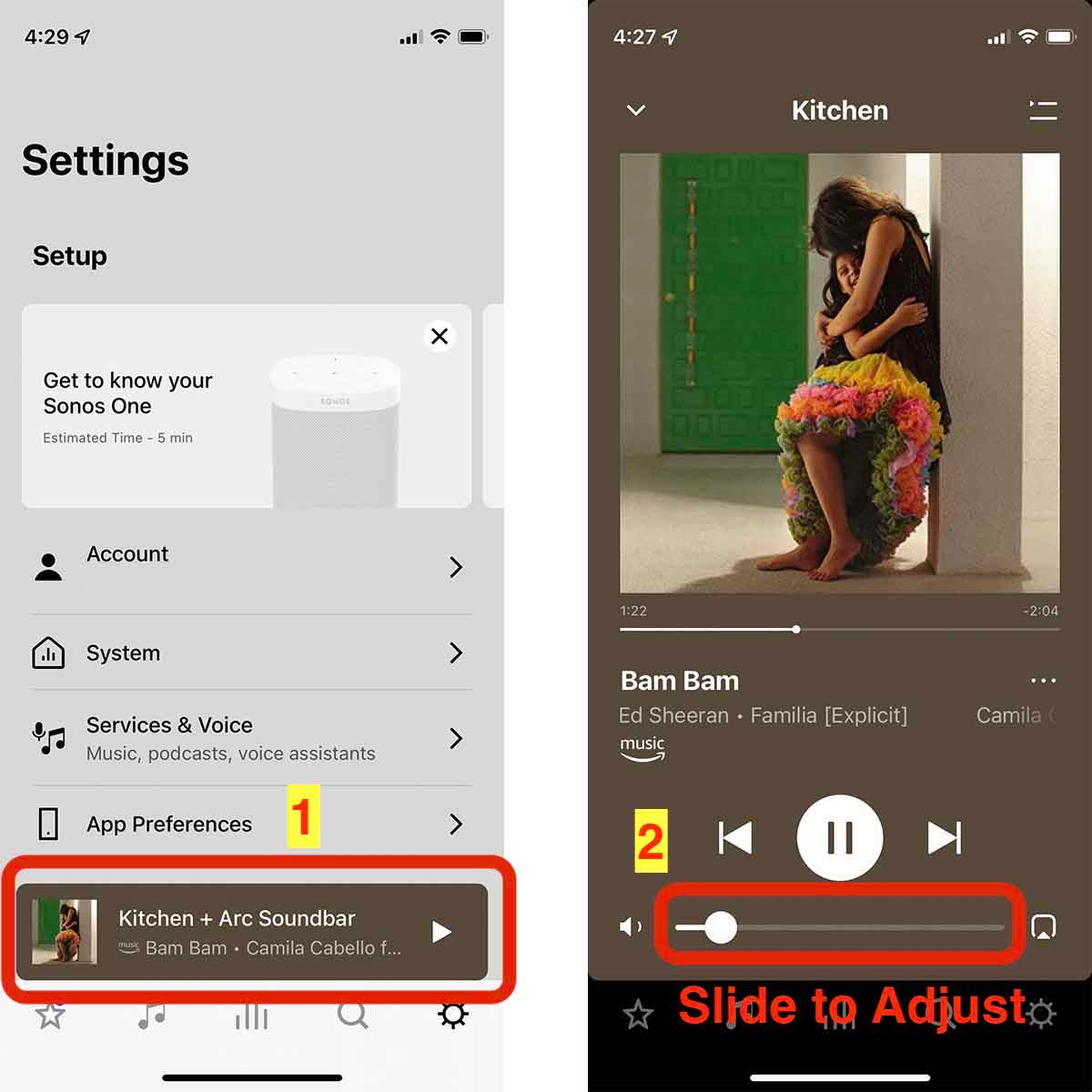
- Tap the “now playing” bar at the bottom of the screen.
- Hold and drag the volume slider to the desired volume.
Grouping Rooms
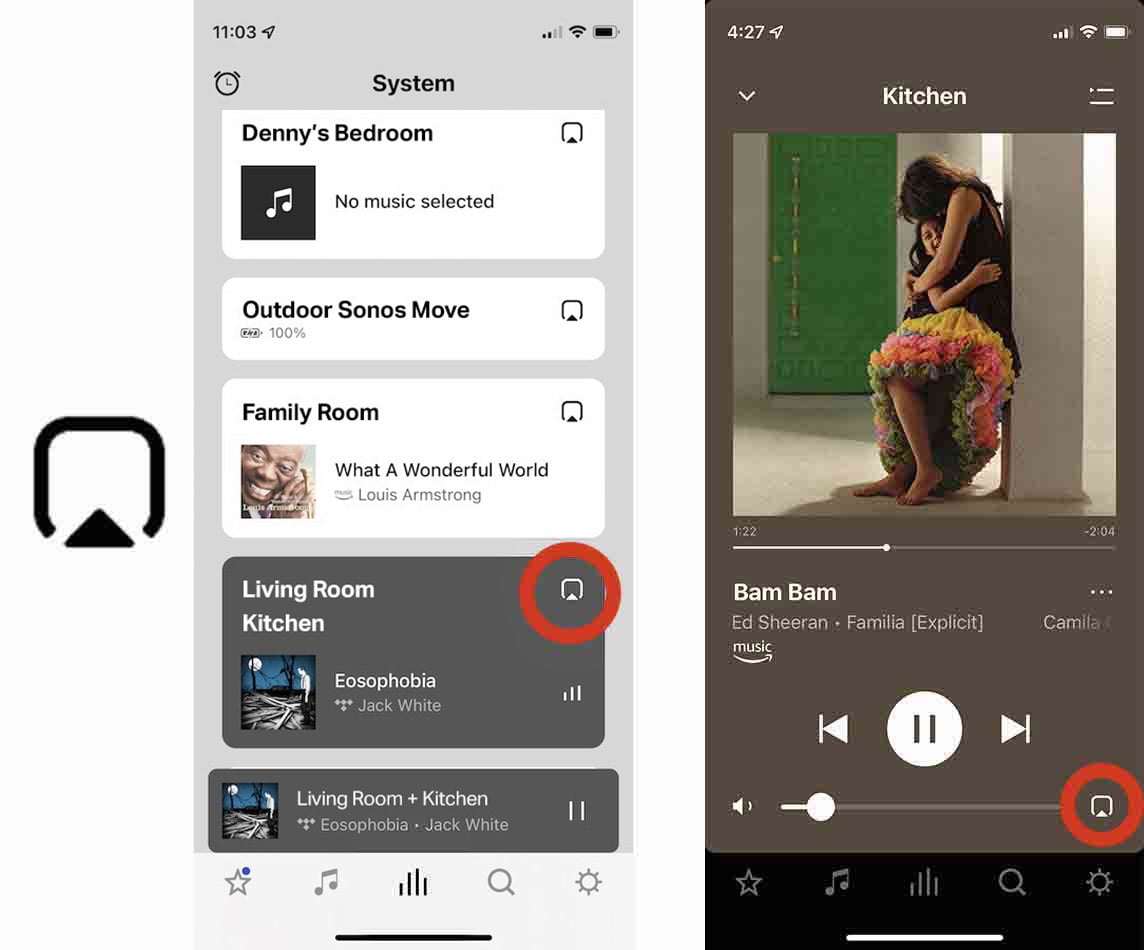
- You can add a room to your currently playing music from the “Play now” screen or the “devices” screen.
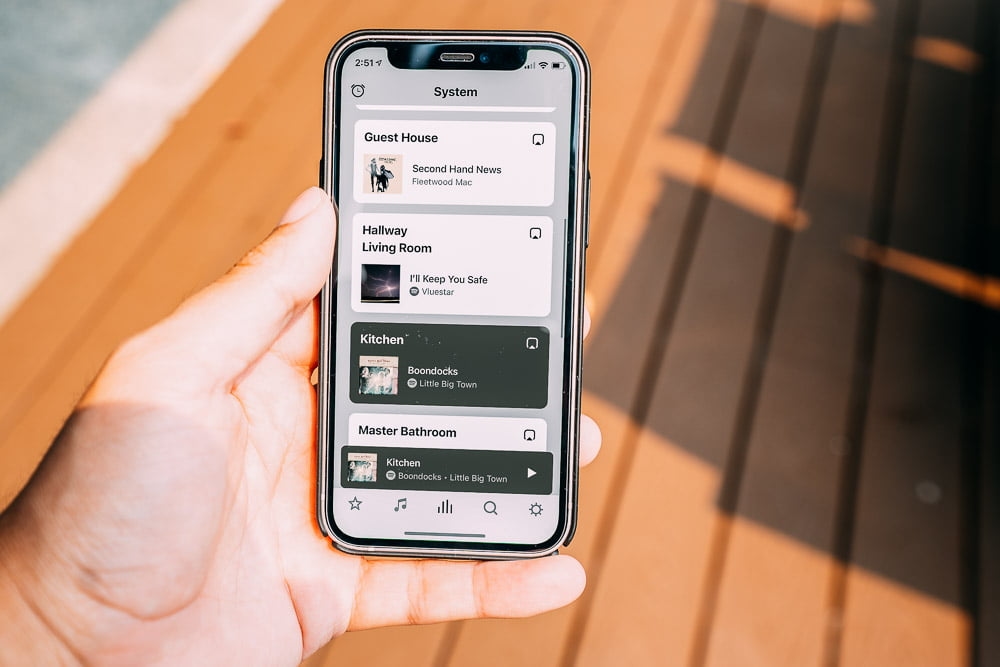
- In either place, select the rounded square icon with an arrow in the middle, see the photo above.
- A list of all the rooms in your home should come up. Tap to select more rooms to group with your currently playing room. There’s no limit to the number of rooms you can group.
Adjusting the Volume of Grouped Rooms
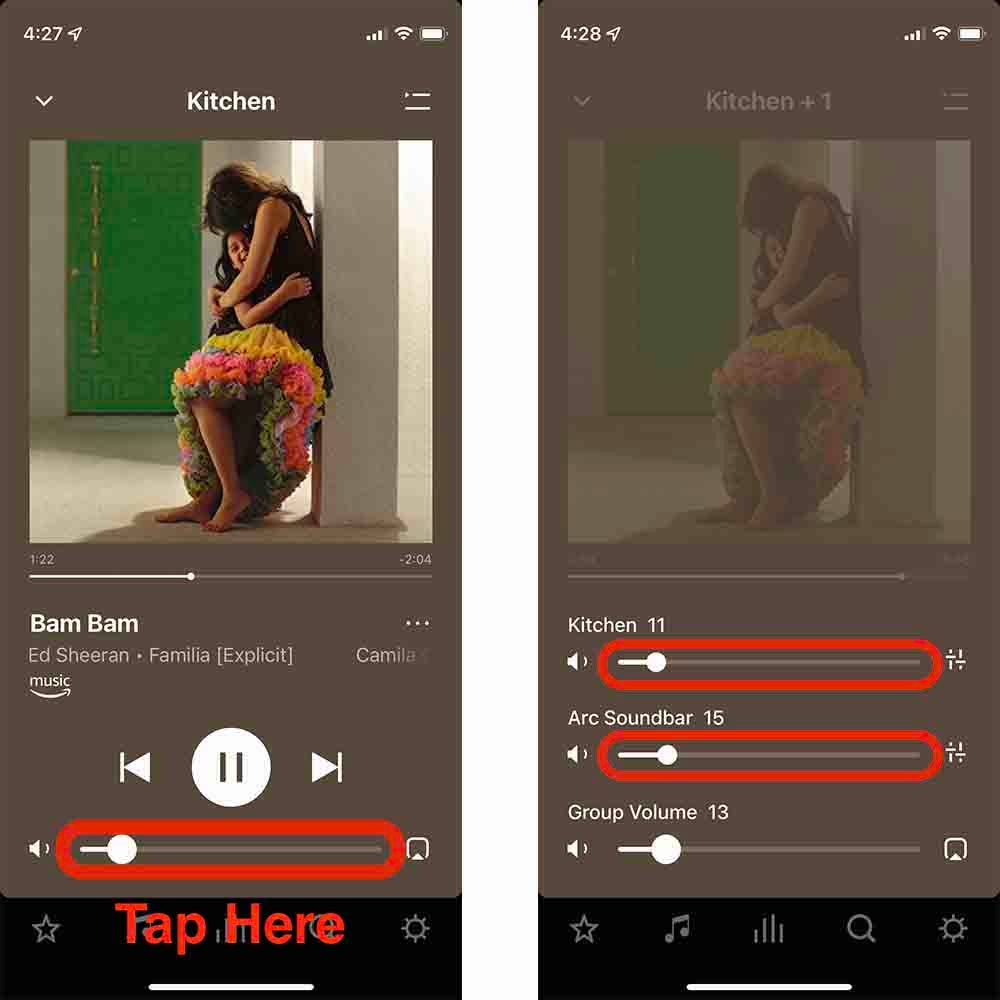
- Tap the “now playing” bar at the bottom of the screen.
- Hold and drag the visible volume slider to the desired volume.
Muting a Specific Room
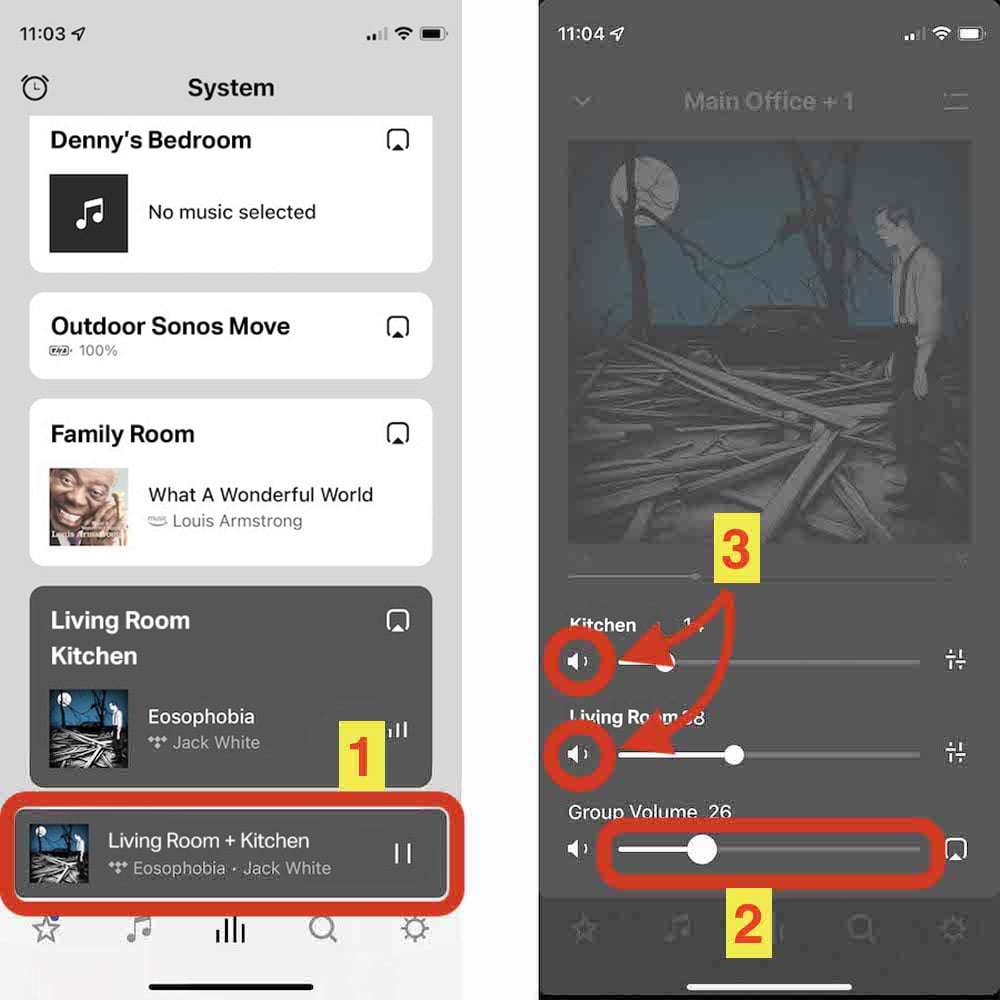
- Tap the “now playing” bar at the bottom of the screen.
- Tap or move the volume slider to see all the rooms that are on.
- Tap the speaker icon on the left for any room to mute it.
Adding a Music Service
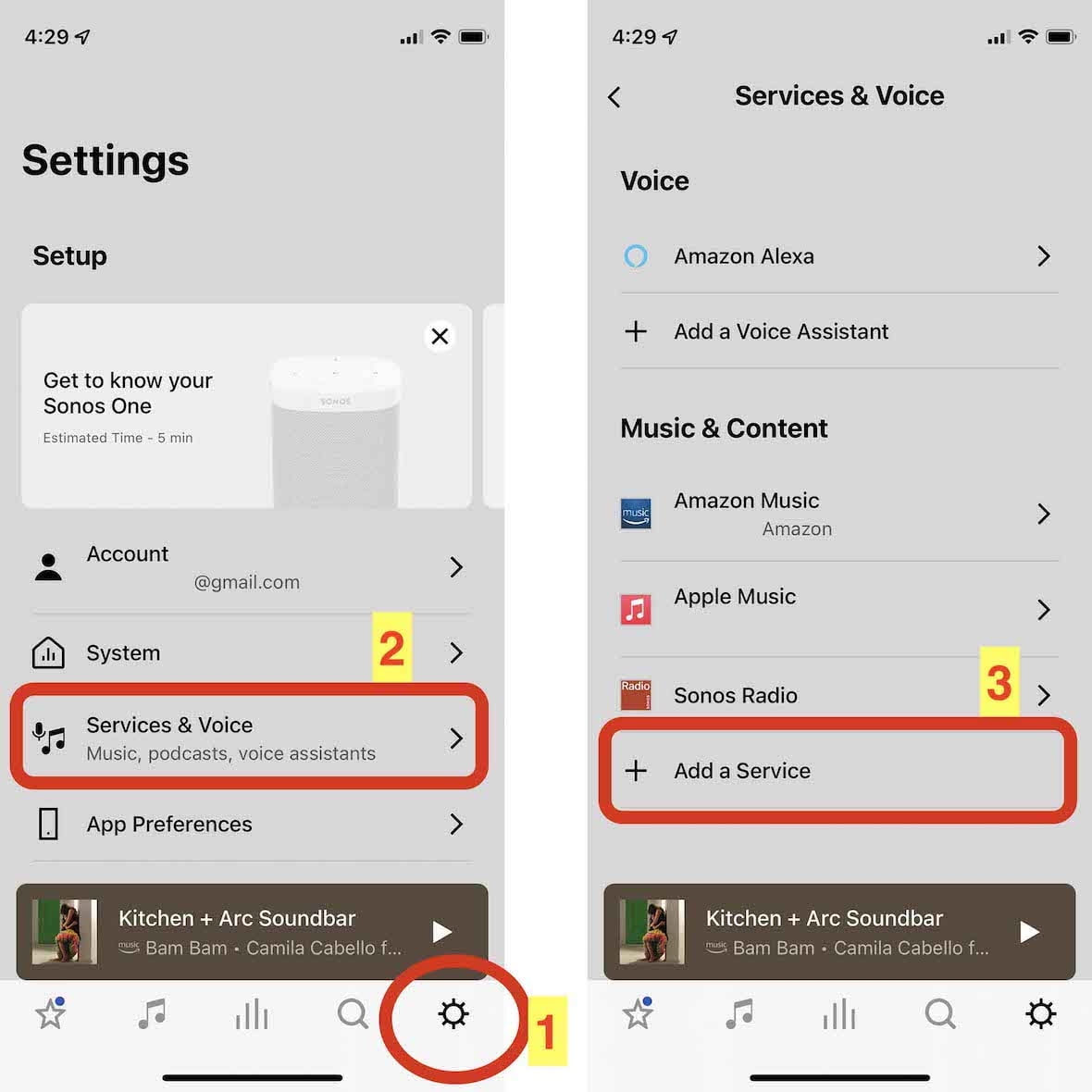
- Tap the gear icon in the bottom right.
- Select “Services & Voice”.
- Go to the bottom of “Music & Content” and select “Add a Service”.
- Follow the on-screen instructions to add your music service.
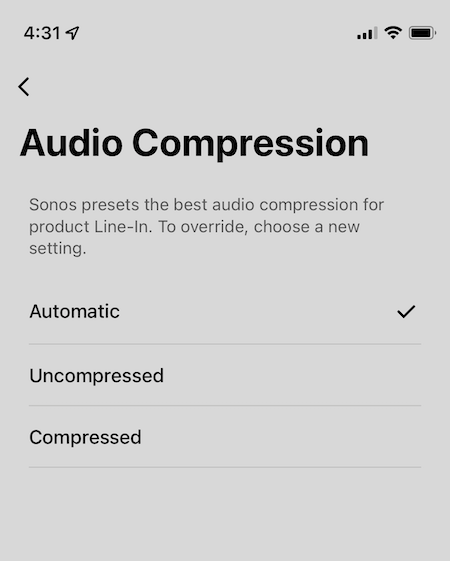
Adjust Audio Compression
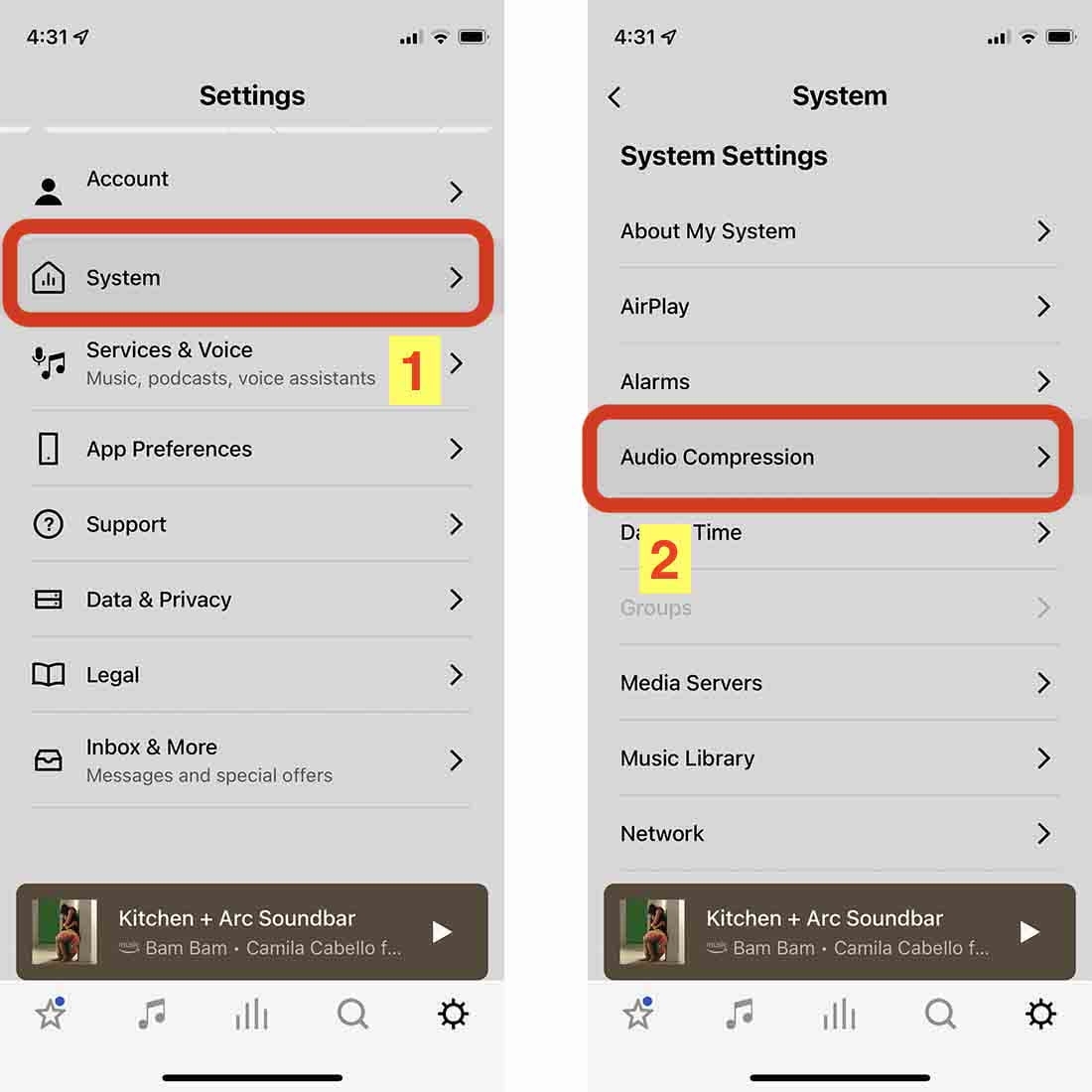
- Tap the gear icon in the bottom right.
- Select “System.”
- Scroll down and select “Audio Compression.”
- From here, you can adjust the setting from automatic to force lossless or compression.
How To Play From Your Turntable
When SoundVision adds your turntable to your Sonos system, it's easy to play your records throughout your home.
- Tap the music note icon in the bottom bar.
- Scroll all the way to the bottom until you see "Line in." Tap it to select it.
- The new list should include any Sonos-integrated turntables installed.
Using your system
Getting the most out of Sonos
Start a Conversation
Let’s Talk About Your Home
Tell us a little about your project and we’ll be in touch.